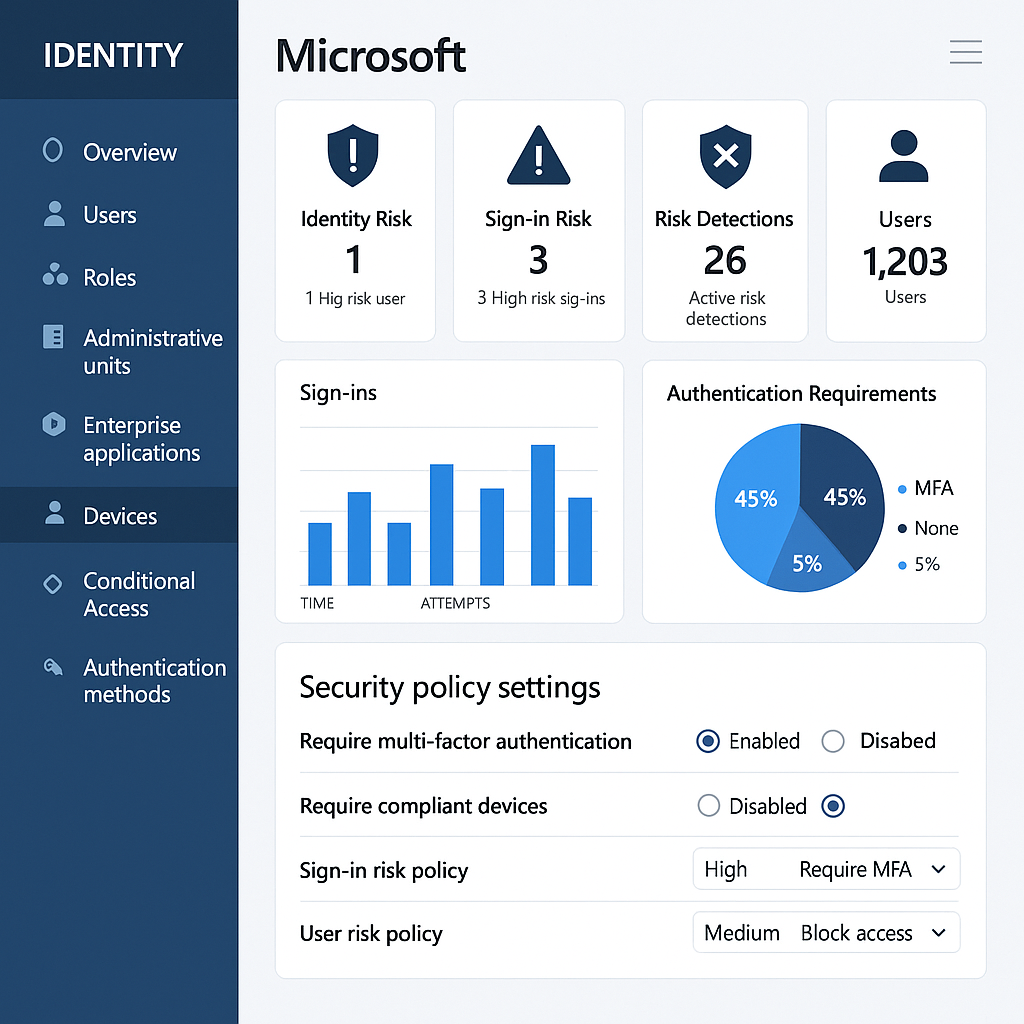
Most businesses running Microsoft 365 or Azure AD have never touched their token lifetime settings. The defaults work, sessions persist, and nobody complains. But if a user account gets compromised — or a token gets stolen — those defaults could be giving an attacker hours of access they should not have.
Microsoft Entra gives you the ability to configure exactly how long tokens stay valid. Here is what that means, what Microsoft changed a few years back that most people missed, and how you should be thinking about this for your organization.
What Are Token Lifetimes?
When a user logs in through Microsoft Entra (formerly Azure AD), the system issues tokens — short-lived credentials that applications use to verify the user’s identity without making them log in again on every request. There are three main token types:
- Access tokens — Used by apps to access protected resources like Microsoft Graph, SharePoint, or your own APIs. Default lifetime is 60-90 minutes.
- ID tokens — Passed to websites and native clients to carry user profile information. Default is 1 hour.
- SAML tokens — Used by web-based SaaS applications and WS-Federation apps. Default is 1 hour.
The core trade-off is simple: longer token lifetimes mean fewer re-authentication prompts (better experience), but they also mean that if a token is stolen, the attacker has a longer window to use it before it expires.
What Changed in 2021 and Why It Still Matters
In January 2021, Microsoft removed the ability to configure refresh token and session token lifetimes through token lifetime policies. If you read older guides that mention setting “RefreshTokenMaxAge” or “MaxAgeSingleFactor” — those settings no longer work.
Instead, Microsoft moved session control to Conditional Access sign-in frequency policies. This is actually a more powerful approach — you can set re-authentication requirements based on user risk, device compliance, and location, rather than just a flat time window.
What you can still configure directly is the AccessTokenLifetime property, which controls how long access tokens, ID tokens, and SAML2 tokens remain valid. The configurable range is 10 minutes to 23 hours 59 minutes.
How Policies Work and a Critical Detail
Token lifetime policies can be applied at three levels: organization-wide, per application, or per service principal. Here is the part most IT teams get wrong: organization-level policies override application-level policies.
That means if you set a 2-hour token lifetime at the org level and a specific app tries to use a 30-minute policy, the org policy wins. This is important to understand before you start configuring policies, because you could inadvertently override security settings on sensitive applications.
A few other important limitations to know:
- No UI in the Entra admin center — Configuration is done entirely through Microsoft Graph API or the Graph PowerShell SDK. There is no point-and-click interface for this.
- SharePoint and OneDrive web sessions are excluded — Policies apply to mobile and desktop clients only; browser-based SharePoint sessions are controlled through Conditional Access instead.
- Managed identities are not supported — You cannot configure token lifetime policies for managed identity service principals.
- Personal Microsoft accounts are excluded — Policies only apply to work and school accounts.
What This Looks Like in Practice
For a healthcare organization, you might configure a short token lifetime (10-30 minutes) for applications that touch patient records or billing systems, while leaving standard productivity apps at the default. This reduces the window an attacker has if they intercept a token — while not forcing clinicians to re-authenticate constantly on tools they use all day.
For a construction firm, the concern is often third-party access — subcontractors and vendors logging in to project management portals or document libraries. Tightening token lifetimes on external-facing apps, combined with Conditional Access sign-in frequency policies, gives you much tighter control over how long those sessions stay open without active use.
If your environment supports Continuous Access Evaluation (CAE), access tokens can be extended to 24-28 hours while still being revokable in near real-time when a risk event occurs — the best of both worlds for performance and security.
Where to Start
- Audit your current policies — Run
Get-MgPolicyTokenLifetimePolicyto see if any policies exist. Most organizations have none and are running on defaults. - Identify your high-risk applications — Which apps access sensitive data? Those are the candidates for shorter token lifetimes or tighter Conditional Access sign-in frequency settings.
- Enable CAE where possible — If your apps support it, Continuous Access Evaluation gives you real-time revocation capability alongside extended token lifetimes.
- Layer with Conditional Access — Token lifetime policies and CA sign-in frequency work together. Use both for the most complete coverage.
Token lifetime configuration is one of those settings that sits quietly in the background until something goes wrong. Getting ahead of it now — before an incident — is the right time to do it. Contact Nebulara Tech if you want a hands-on review of your Entra configuration and token policies. We work with healthcare and construction businesses across South Florida to get Microsoft security settings dialed in the right way.